Serverless Laravel - Getting started
This guide helps you run Laravel applications on AWS Lambda using Bref. These instructions are kept up to date to target the latest Laravel version.
Coming from Laravel Vapor? Read the migration guide from Laravel Vapor to Bref.
Setup
First, follow the Setup guide to create an AWS account and install the necessary tools.
Next, in an existing Laravel project, install Bref and the Laravel-Bref package .
composer require bref/bref bref/laravel-bridge --update-with-dependenciesThen let’s create a serverless.yml configuration file:
php artisan vendor:publish --tag=serverless-configConfigure serverless.yml
Before deploying, edit the generated serverless.yml:
- Set
serviceto the name of your application (lowercase, without spaces). - If you deploy with Bref Cloud, uncomment the
brefsection and setteamto the slug of your Bref Cloud team.
The generated file also sets an example APP_KEY so that you can deploy right away. That key is public: replace it before deploying a real application (see below).
How it works
By default, the Laravel-Bref package will automatically configure Laravel to work on AWS Lambda.
If you are curious, the package will automatically:
- replace the default
stacklog channel withstderr, to send logs to CloudWatch (read more about logs) - replace the
filesession driver with thecookiesession driver - move the storage directory to
/tmp(because the default storage directory is read-only on Lambda) - adjust a few more settings (have a look at the
BrefServiceProviderfor details)
The generated serverless.yml uses the cookie session driver (SESSION_DRIVER: cookie). Cookie sessions are limited to 4 KB of data: if your application stores more in the session, use the database, DynamoDB or Redis session driver instead.
Deployment
We do not want to deploy development dependencies (PHPUnit, Laravel Boost, etc.): they make the application larger and are not meant to run in production. Let’s install Composer dependencies without them:
composer install --prefer-dist --optimize-autoloader --no-devWe also do not want to deploy “dev” caches that were generated on our machine (because paths will be different on AWS Lambda). Let’s clear them before deploying:
php artisan config:clearLet’s deploy now:
Bref Cloud
bref deployWhen finished, the deploy command will show the URL of the application.
Run composer install to get development dependencies back locally. Remember to run composer install --no-dev again before every deployment, or automate deployments in CI.
Deploying for production
Follow the deployment guide for more details about deploying in general.
Application key
The APP_KEY in the generated serverless.yml is an example key, shared by everyone who uses the file. Laravel uses it to encrypt cookies, including the session cookie: replace it before deploying a real application.
Generate a new key and store it as a secret, for example for the prod environment:
bref secret:create APP_KEY "$(php artisan key:generate --show)" --env=prodThen reference the secret in serverless.yml (my-app is the service name):
provider:
    environment:
        APP_KEY: ${ssm:/my-app/${sls:stage}/APP_KEY}
bref/laravel-bridge installs aws/aws-sdk-php. This package is very large (100MB+) and can push your deployment over Lambda’s 250MB size limit. Make sure to remove unused AWS services to reduce the deployment size. Keep Sqs if you use queues and DynamoDb if you use DynamoDB for the cache or sessions.
Specifically for Laravel, Bref will automatically cache the configuration on “cold starts”. This means that you don’t need to run php artisan config:cache before deploying.
You could improve the cold start time by pre-generating the config cache before deploying:
php artisan config:clear && php artisan config:cacheHowever Laravel will hardcode absolute paths and environment variables in the cached configuration. To deploy a valid cached configuration, you would need to run the commands above in Docker with the application mounted in /var/task (the same path as on AWS Lambda), with production environment variables available.
For most applications we do not recommend this approach. Instead, let Bref cache the config in AWS Lambda on cold starts.
Troubleshooting
In case your application is showing a blank page after being deployed, have a look at the logs.
Logs
Thanks to the Bref integration, Laravel will automatically log to CloudWatch via stderr. You don’t have to do anything.
You can learn more about logs in the Logs guide.
Website assets
Have a look at the Website guide to learn how to deploy a website with assets.
Laravel Artisan
As you may have noticed, we define a function named “artisan” in serverless.yml. That function is using the Console runtime, which lets us run Laravel Artisan on AWS Lambda.
For example, to execute an artisan command on Lambda, run the command below:
Bref Cloud
bref command "{artisan command and options}"For example:
bref command "route:list --help"For more details follow the “Console” guide.
Laravel Tinker
If you are using Bref Cloud, you can start an interactive Tinker shell on AWS Lambda from your machine by running:
bref tinkerThe usual flags work, for example to run Tinker in the production environment:
bref tinker --env=prod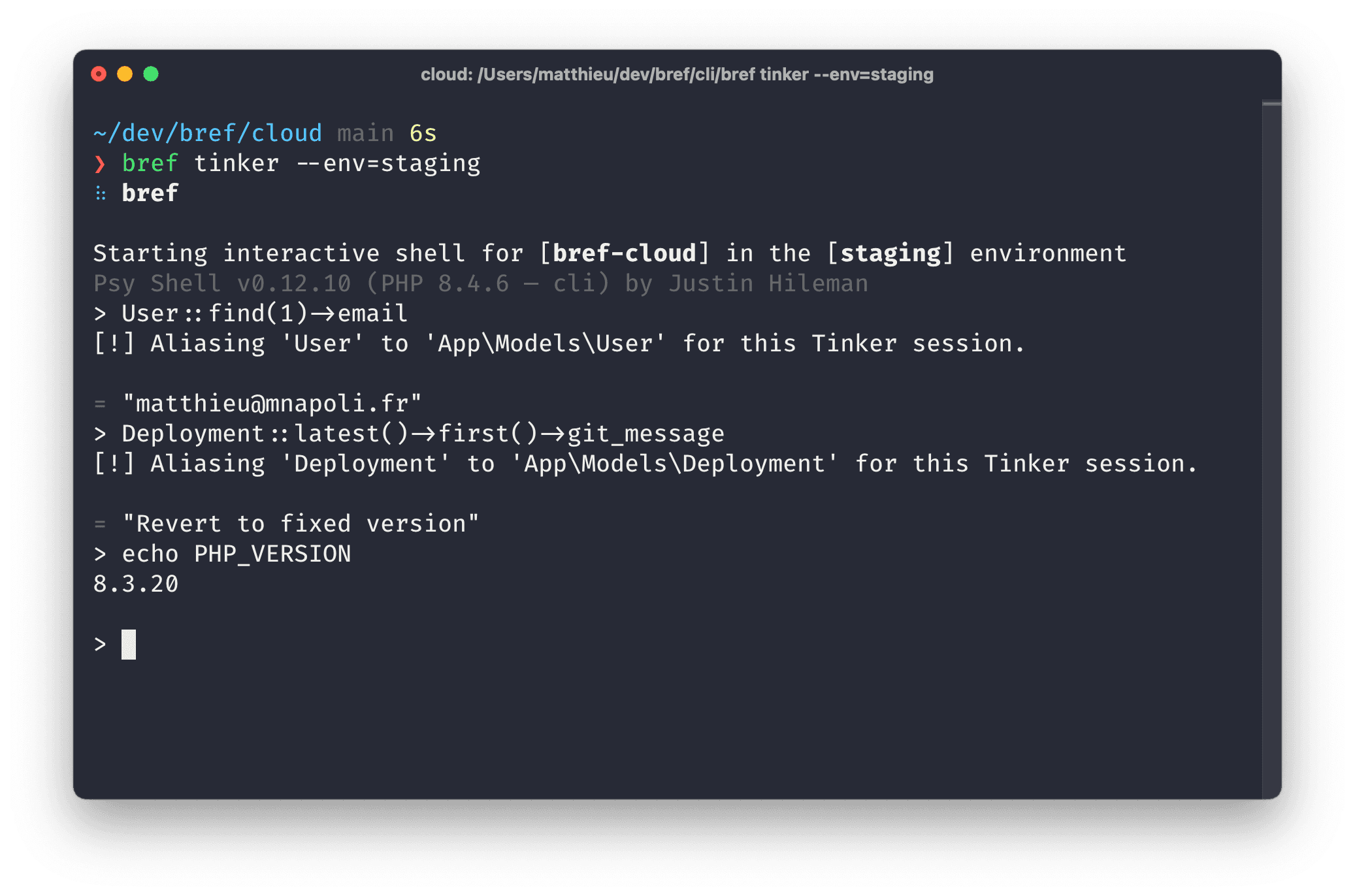
If you are not using Bref Cloud, you can check out this community package: sls-tinker .
Inertia
Laravel with Inertia runs without issue, like any other website. Follow the Websites guide to learn how to deploy a Laravel application with assets.